A Better Webcam Workflow for Tutorial Streamers and YouTube Educators
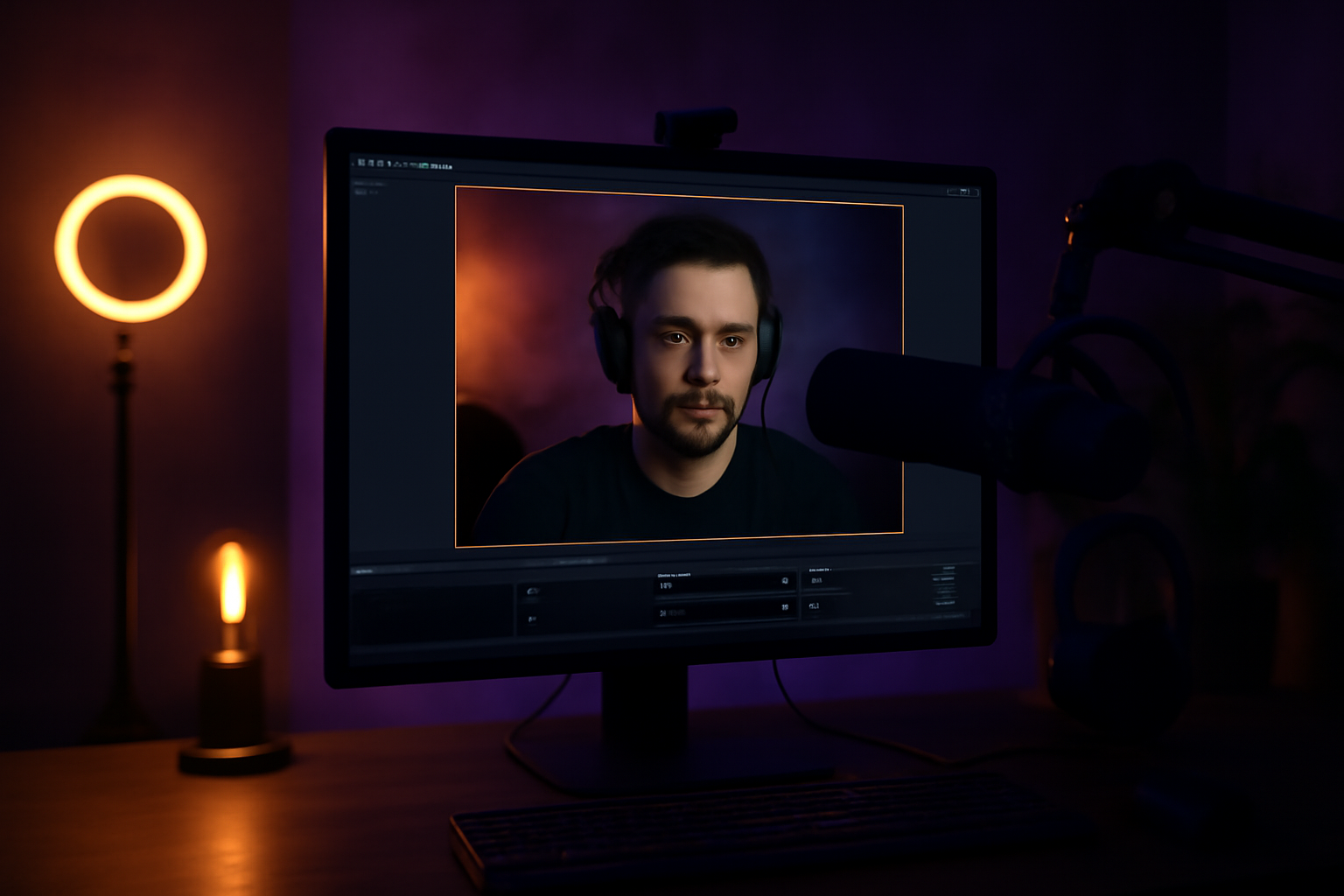
Tutorial creators have a specific problem that game streamers mostly don't. Every part of your screen is content. You're walking someone through steps, showing them where to click, what to type, what to look for. There's no empty space on screen where your webcam can safely hide.
The moment your face covers a button you're about to click, someone in your audience misses a step. They pause the video. They rewind. They lose confidence that they're following correctly. That friction is invisible to you while you're recording, but it's very real for the person watching.
The Tutorial Creator's Layout Challenge
Imagine you're making a tutorial on setting up a new tool. Your screen has a browser, a terminal, maybe a text editor. You're clicking through menus, typing commands, checking output. Your cursor is everywhere.
You put your webcam in the top right corner. For the first minute it's fine. Then you navigate to a menu in the top right. Your face covers the menu. You click something, but your viewers couldn't see what you clicked because your webcam was there.
You move the webcam to the bottom right. Now the terminal output you keep referencing is hidden. You move it again. This is the cycle every tutorial creator knows.
Some Creators Just Go No-Cam
A lot of tutorial YouTubers eventually drop the webcam entirely. No face, just screen and voice. This solves the coverage problem completely. But it also makes the video feel less personal. Viewers connect more with creators they can see. The webcam adds warmth and trust that voice-over alone doesn't quite replicate.
Going no-cam is giving up on that connection to avoid a technical frustration. It's a reasonable trade-off but it doesn't have to be the only option.
How Automatic Dodging Changes the Tutorial Format
Cat and Mouse (catnmouse.app) connects to OBS and watches your cursor. When you move your cursor toward where your webcam is sitting, the webcam moves away. Your face is never covering what you're about to show or click.
For a tutorial creator this is significant. Your cursor tells the story of your tutorial. It's pointing at buttons, highlighting fields, selecting text, clicking menus. Those cursor movements are the exact moments you need clear screen visibility. Cat and Mouse makes sure you have it.
You keep the personal connection of being on camera. Your viewers see you and see the screen clearly at the same time. You don't have to choose.
The Confidence Factor
There's also something to be said for just feeling less stressed while recording. When you know your webcam isn't going to cover something important, you stop mentally tracking it. You stop planning your cursor movements around your camera position. You just teach.
That freedom shows in the final content. Tutorials recorded by someone who's relaxed and focused tend to flow better than ones where the creator is managing multiple technical constraints in their head simultaneously.
Getting Set Up
Cat and Mouse works with OBS Studio and Streamlabs OBS on Windows. It connects via WebSocket, which is built into recent versions of OBS and just needs to be enabled in settings. After connecting, it detects your webcam source automatically and starts monitoring your cursor.
The styling panel is also worth using if you care about how your webcam looks. Getting a clean circle or rounded rectangle frame with a border takes a few clicks. For YouTube tutorials, where the production quality bar is a bit higher than a casual Twitch stream, small visual polish details do matter.
At three dollars a month with the early adopter price locked in permanently, it's a small investment for a problem that affects every tutorial session you do.
Stop typing. Start talking.
VoiceInk turns your voice into text in any app. Local, fast, private. Free to start.
Download VoiceInk Free