Tutorial Creators: Your Webcam Is Covering Your Content and It's Hurting Your Videos
The Problem Shows Up in Your Footage
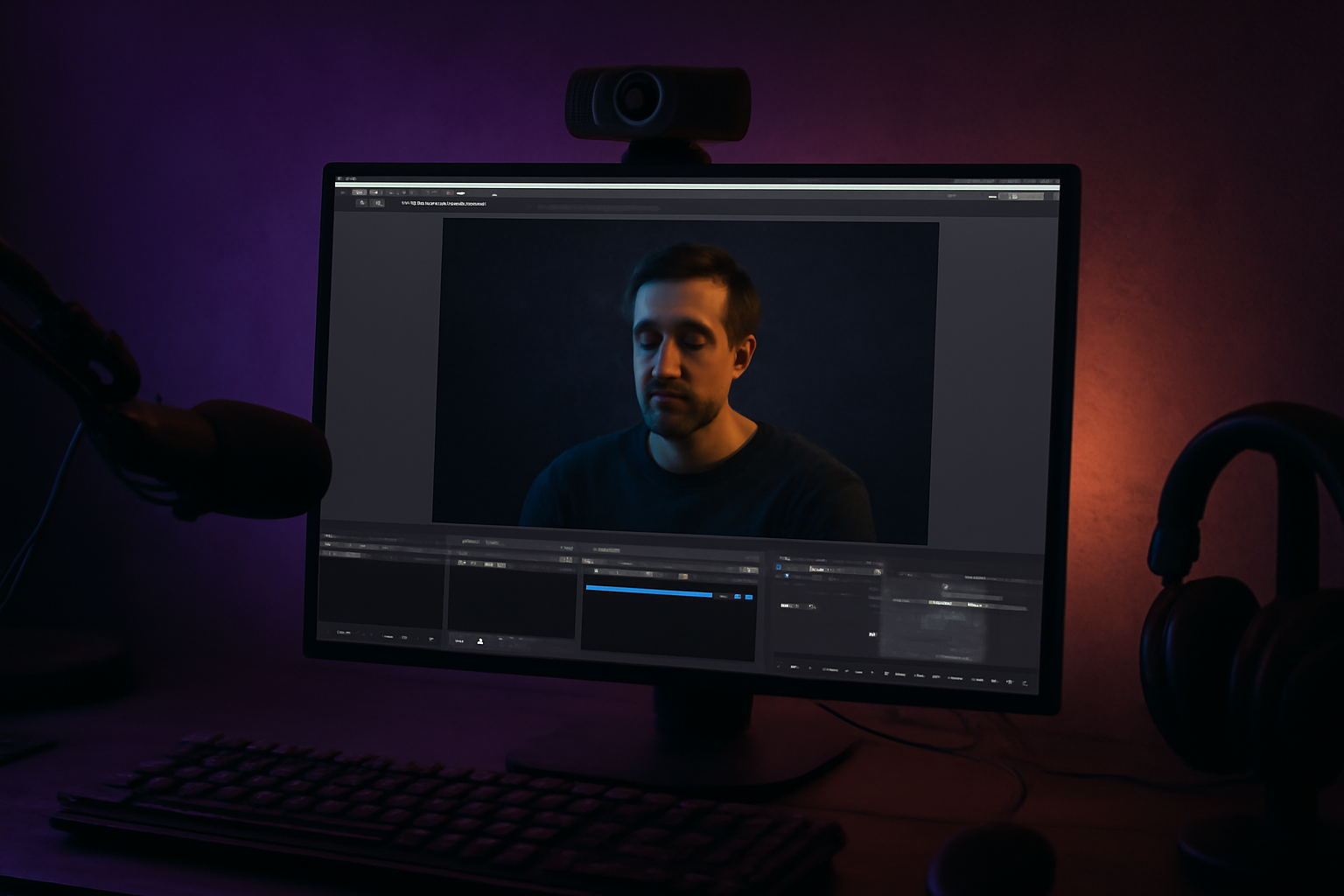
Go back and watch one of your recent tutorial recordings. Really watch it. Count how many times your webcam is covering a button, a menu, a line of code, a label, or anything else your viewer needs to see.
For most tutorial creators, it's a lot. And because it's your own content, you don't notice it while you're recording. You know what's under your face. Your viewer doesn't.
Why the Corner Webcam Fails for Tutorials
The corner webcam placement came from gaming. In a gaming stream, the action is center screen, the UI elements are at the edges, and a face cam in the bottom corner mostly stays out of the way.
In a tutorial, your cursor is pointing at things in every corner of the screen. You're opening menus that appear at the top. You're clicking buttons along the left edge. You're navigating file trees, toolbars, sidebars, dropdown menus. Every single corner of the screen is potentially important, and your webcam is parked in one of them permanently.
A tutorial about CSS layout where the viewer can't see the property panel because your face is sitting on it is a worse tutorial. It doesn't matter how good your explanation is.
What Tutorial Creators Usually Do About It
The most common fix is to just not have a webcam. A lot of tutorial content on YouTube is screen capture only, no face cam. That works, and plenty of very successful tutorial channels do exactly that.
But if you want viewers to connect with you as a person, if you're building an audience rather than just publishing reference content, a webcam matters. People subscribe to people, not to disembodied cursors.
Some creators position their webcam away from the areas they use most often, which works until you need to use that area. Some shrink it until it barely registers, which reduces its value. Some stop the recording, move the webcam, and resume, which is awkward and rarely actually happens in practice.
A Different Approach
Cat and Mouse is a Windows app for OBS that makes your webcam overlay dodge your cursor automatically. You move your mouse toward your webcam, it moves out of the way. You hover over a menu, your face isn't covering it.
For tutorial creators, this is a meaningful improvement. You keep your webcam at a normal, readable size. It stays visible when you're talking and not pointing at anything specific. It gets out of the way when you move toward it. Your viewers always see what you're pointing at.
The app connects to OBS via WebSocket and detects your webcam source automatically. Once it's running, you don't manage it. It's three dollars a month.
Making Your Webcam Look Good in Tutorials
Beyond movement, there's the question of how your webcam looks on screen. A raw rectangular webcam feed sitting in the corner of a clean tutorial looks a bit unfinished.
Cat and Mouse has a styling panel that lets you set a shape, border, and glow effect without touching OBS filters. For tutorial content, a circle or rounded rectangle with a simple border looks much cleaner. It reads as intentional rather than default.
This matters more in tutorial content than in gaming content because your viewers are watching carefully. They're learning. A clean, professional layout signals that you've thought about the experience for them.
A Practical Workflow
Before you record: open OBS, launch Cat and Mouse, verify the WebSocket connection, check your webcam shape and border in the styling panel. Takes about ninety seconds.
During recording: your webcam moves automatically. You narrate, you point, you explain. Your viewer sees what you're pointing at.
After recording: review one clip before publishing. You'll notice immediately if your face was covering something important. With Cat and Mouse running, it almost certainly wasn't.
That's the whole workflow. The hard part of tutorial creation is the content itself. Your setup should not be an ongoing distraction.
Stop typing. Start talking.
VoiceInk turns your voice into text in any app. Local, fast, private. Free to start.
Download VoiceInk Free