Stop Moving Your Webcam Manually Mid-Stream
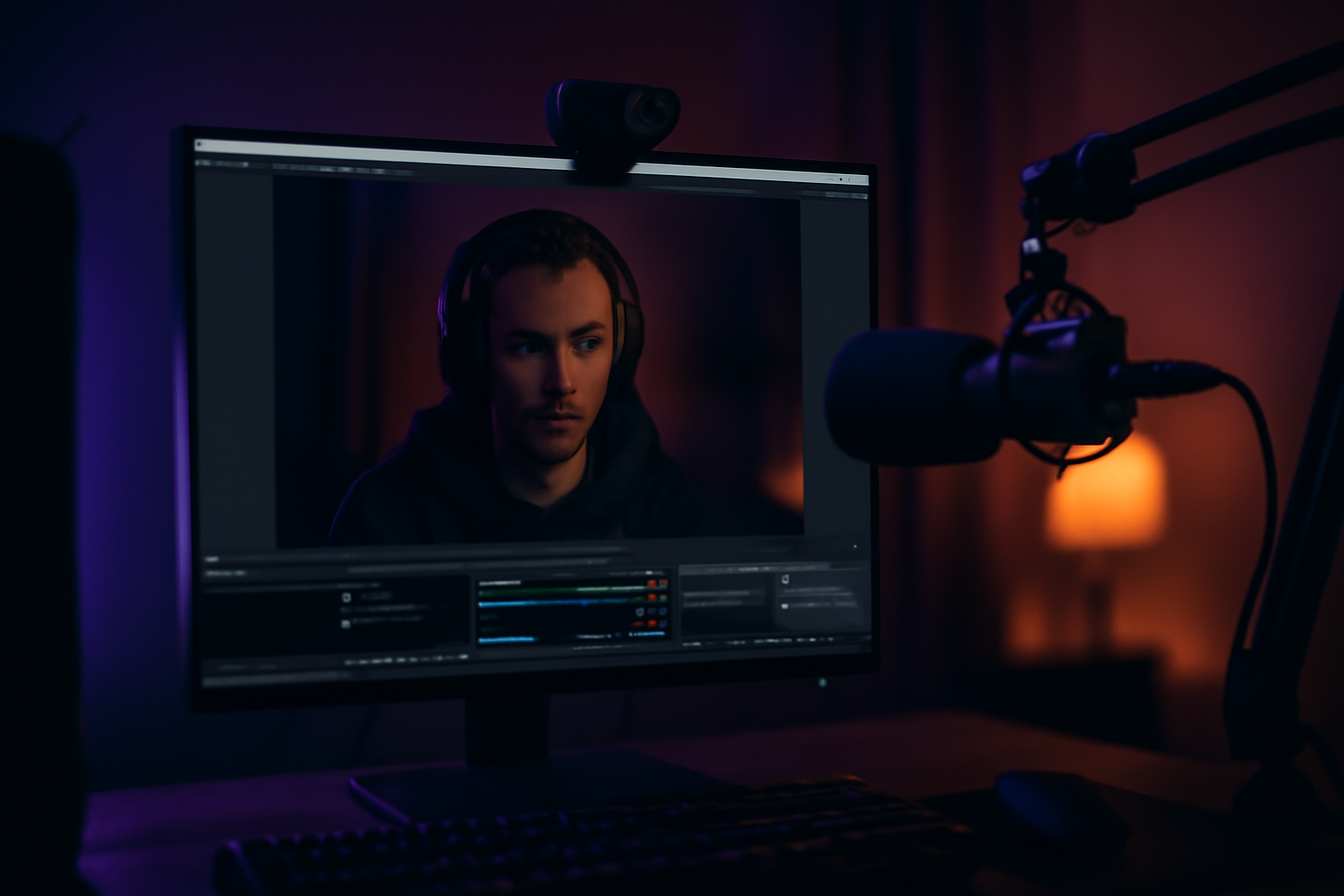
The Moment Every Streamer Knows
You're mid-explanation, mouse hovering over the exact line of code you want to talk about, and your face is sitting right on top of it. You stop talking, click over to OBS, drag the webcam to the other corner, switch back, lose your train of thought, and carry on. Two minutes later, it's in the way again.
This happens to every streamer who shares their screen. Developers streaming their work, tutorial creators walking through slides, people doing code reviews live on Twitch. The webcam is useful because it keeps things personal, but it was designed for a time when most streamers just had a game running fullscreen and their face could live safely in a corner forever.
Once you're sharing an IDE, a browser, a terminal, or a presentation, there is no safe corner. The content moves around. Your cursor moves around. Your face ends up blocking something constantly.
What Manual Workarounds Actually Cost You
Most streamers try to solve this one of a few ways. Some just accept the obstruction and apologize to chat. Some set up multiple OBS scenes with the webcam in different positions and hotkey between them. Some shrink the webcam so small it barely matters, which defeats the whole point of having it.
The scene-switching approach is the most common serious attempt. You spend twenty minutes setting up four scenes, each with your webcam in a different corner, and you map hotkeys. Then during your stream you're managing hotkeys on top of everything else you're doing. It's another thing to think about. It breaks your flow. And it still only gets you to four positions, not wherever you actually need the webcam to be.
None of these solve the problem. They manage around it.
What Dodging Actually Looks Like
Cat and Mouse takes a different approach. It connects to OBS through WebSocket, watches where your mouse cursor is on screen in real time, and moves your webcam overlay away whenever you get close. The webcam doesn't wait for you to do anything. It just gets out of the way.
When you're pointing at something in your code, your face is somewhere else. When you move to a different part of the screen, the webcam repositions. You stop thinking about it within about five minutes of using it. That's the whole point.
The app works with OBS Studio and Streamlabs OBS. It detects your webcam source automatically, so there's no manual setup to wire it up. You install it, connect it, and the dodging starts.
Why This Matters More Than It Sounds
Streaming while coding or teaching is already cognitively heavy. You're writing code, narrating what you're doing, reading chat, managing audio. Anything that removes one more decision from your plate is worth it.
The streamers who benefit most from this are exactly the ones who share detailed content. If you're playing a game where the action is always center screen, a corner webcam is fine. But if you're walking through a diff, reviewing a pull request, explaining a CSS layout, or building something live, your cursor is everywhere. Your face needs to move with it, or out of its way.
Cat and Mouse is three dollars a month. It's the kind of tool that solves one specific problem so completely that you forget it was ever a problem. The webcam dodges the cursor. You keep talking. Your viewers see what you're pointing at. That's it.
Getting Started
You can grab it at catnmouse.app. It runs on Windows, and Mac support is in the works. If you're a developer who streams, or anyone who shares their screen and has ever had to stop mid-sentence to move your face out of the way, it's worth the five minutes to set up.
Stop typing. Start talking.
VoiceInk turns your voice into text in any app. Local, fast, private. Free to start.
Download VoiceInk Free