How to Style Your OBS Webcam Without Touching a Single Filter
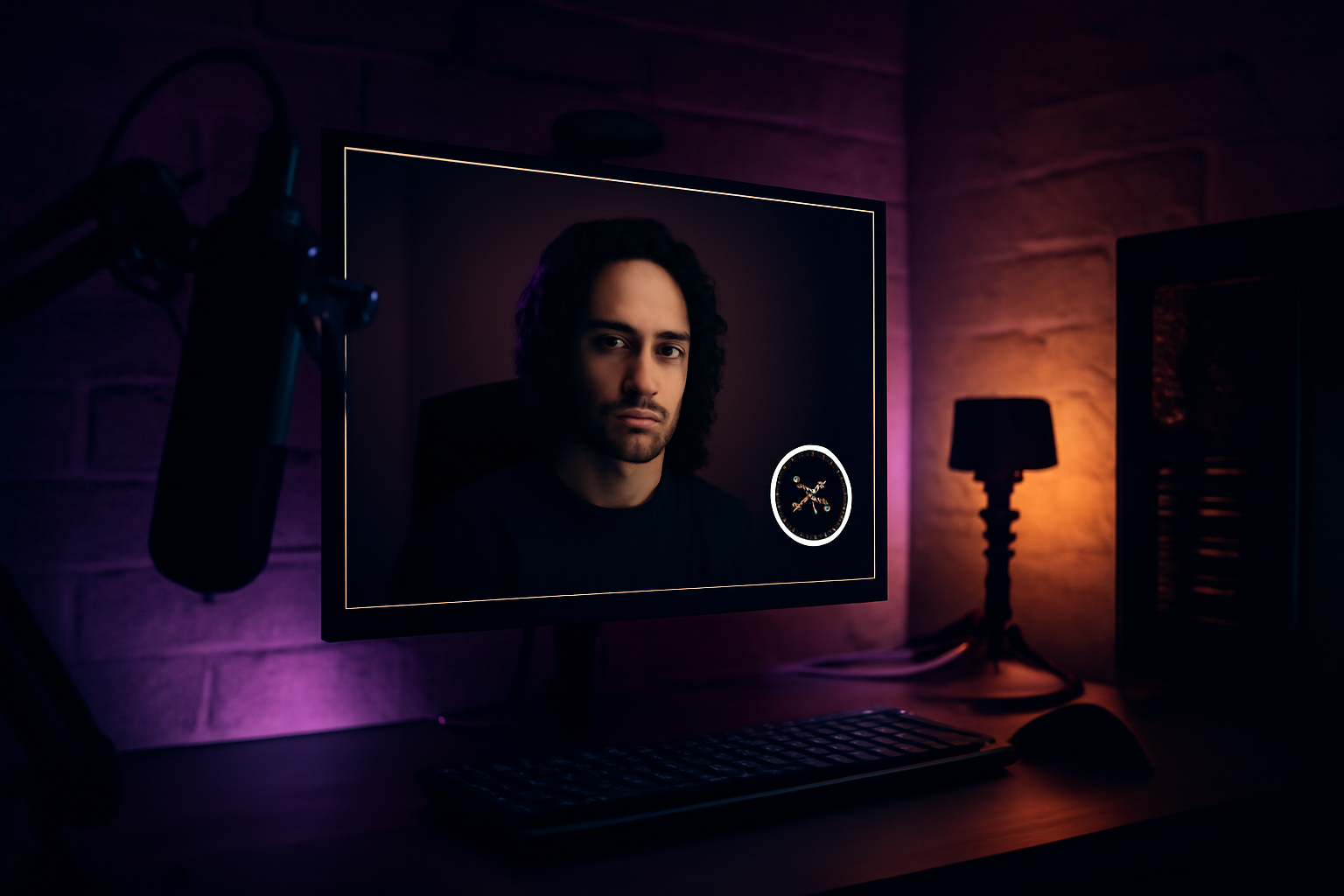
If you've ever tried to get a circle webcam in OBS manually, you know how painful it is. You're hunting for the right mask image file, applying an image mask filter, wrestling with the crop to center it, then layering on another source for the border, then figuring out how to add a glow. By the end you've spent the better part of an hour and it still looks slightly off.
Most streamers either give up and use a plain rectangle, or they find a template pack and hope it fits their scene.
Why Manual OBS Webcam Styling Is So Tedious
OBS is built for scene management and encoding, not design. Adding a circle mask to your webcam involves finding or creating a PNG mask file, applying it through the image mask filter, and then fine-tuning crop settings to make sure your face is actually centered in the circle. If you change your webcam position or size later, you often have to redo the crop.
Adding a border means adding a separate source layered behind the webcam, usually a colored rectangle or circle that you size to just barely extend past the edges of your webcam. Getting the sizing right takes multiple small adjustments.
Glow effects in OBS require the blur filter stacked with some color source tricks. There's no glow slider. You're building an approximation of a glow out of available filters and it's genuinely awkward.
None of this is impossible, but it's slow and finicky for what should be simple visual settings.
What Cat and Mouse Does Instead
Cat and Mouse (catnmouse.app) has a live styling panel built in. You click a shape, circle, rounded rectangle, or portrait, and it applies immediately. You pick a border color from a color picker and set the thickness with a slider. You turn on glow and drag a slider for intensity. Every change shows up in your OBS scene in real time.
The whole thing takes seconds. If you want to change your look mid-stream, you can do that too. Swap from a circle to rounded rectangle, adjust your border color to match a new overlay theme, dial the glow up or down. It all updates live without any scene editing in OBS.
Shapes You Can Use
The three shapes available are circle, rounded rectangle, and portrait. Circle is the classic look that most streamers want but struggle to set up. Rounded rectangle is a softer version of the default rectangle that looks cleaner without being as dramatic as a circle. Portrait is a taller frame shape, useful if you want a bigger presence on screen without going full circle.
Borders and Glow
The border controls let you set color and thickness. Pick a color that matches your stream branding, set the thickness to something visible without being heavy, and you're done. The glow control adds a soft colored light effect around the webcam edge. Subtle glow looks polished. Heavy glow can look stylized if that's your thing. Either way, one slider controls it.
Why This Matters for New Streamers
When you're starting out, spending 45 minutes fighting OBS filters for a circle webcam is time you're not spending on your content or your setup in other ways. Cat and Mouse removes that friction entirely.
The styling panel is a secondary feature to the webcam dodging, but for a lot of streamers it's the first thing they notice and use. Looking good on stream shouldn't require a tutorial series. With Cat and Mouse, it doesn't.
At three dollars a month, with the early adopter rate locked in permanently, it's one of the cheaper ways to improve how your stream looks.
Stop typing. Start talking.
VoiceInk turns your voice into text in any app. Local, fast, private. Free to start.
Download VoiceInk Free