How to Stream Your Coding Sessions Without Your Webcam Getting in the Way
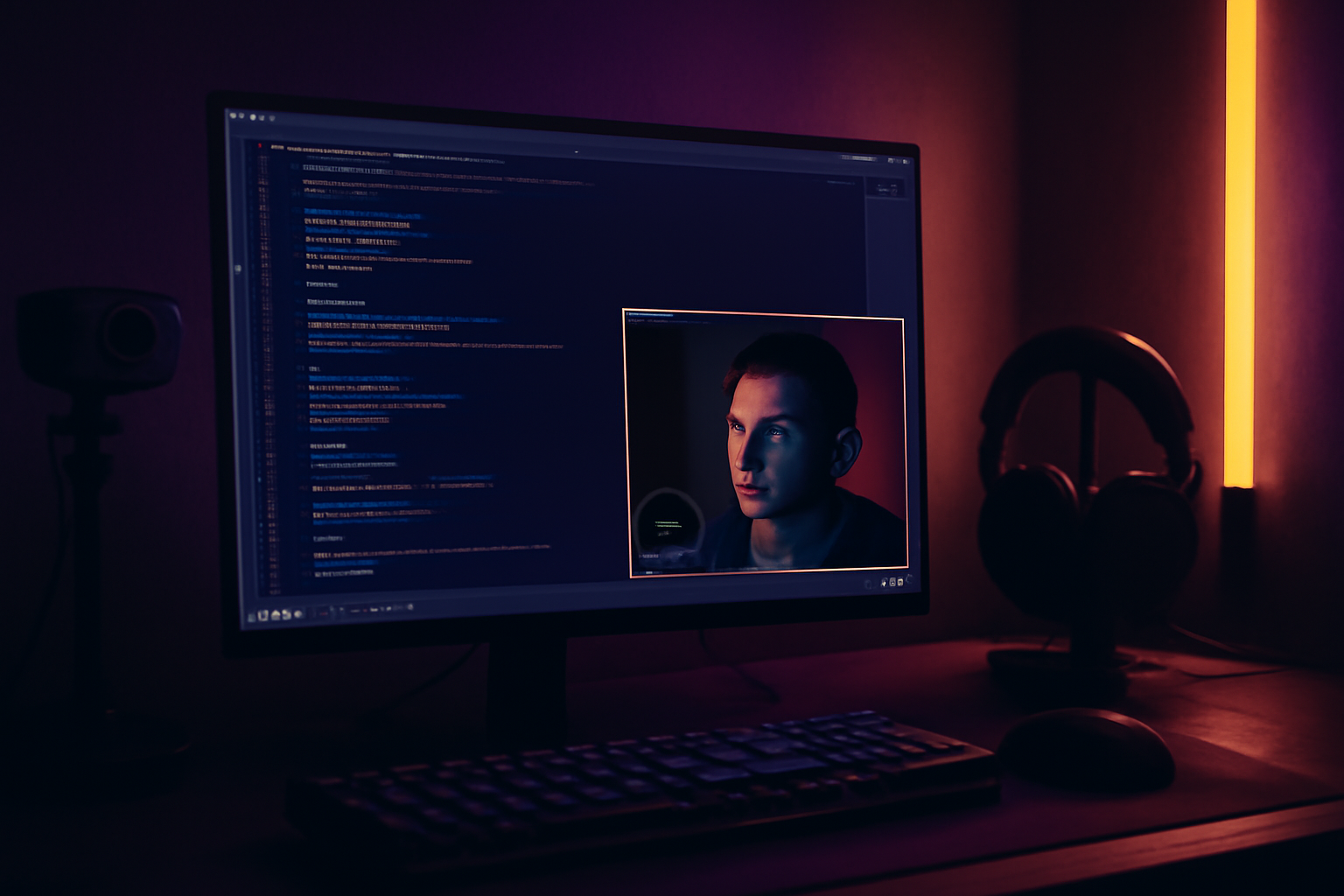
Coding Streams Have a Specific Problem
Game streamers have it easy when it comes to webcam placement. The action is usually in the center, the UI is at the edges, and a corner webcam stays out of the way ninety percent of the time.
Developer streams are different. Your cursor is jumping between your editor, your terminal, your browser, your documentation. You're scrolling through files, selecting text, running tests. There is no safe corner for your webcam because you use the whole screen constantly.
This guide is for developers who stream on Twitch or YouTube and want to look professional without spending mental energy on webcam management.
Accept That a Static Webcam Doesn't Work for You
The first shift is accepting that the traditional corner webcam setup wasn't designed for what you're doing. It works for streamers who have a fixed game viewport. It doesn't work for a developer who switches between VS Code, a terminal, Chrome DevTools, and Figma in the same hour.
Once you accept that, you have two options: shrink the webcam until it's nearly invisible, or make it move. Shrinking it defeats the point. A tiny webcam doesn't help viewers connect with you, and it looks like you're hiding. Making it move is the better answer.
Let Cat and Mouse Handle the Movement
Cat and Mouse is a small Windows app that connects to OBS and watches your cursor position. When your cursor gets close to your webcam overlay, the webcam moves out of the way. It repositions automatically based on where you are on screen.
For a coding stream, this is close to ideal. You're navigating through your code, your webcam is always somewhere it isn't blocking what you're pointing at. You never touch it. You never think about it.
At three dollars a month, it costs less than a coffee and runs quietly in the background while you stream.
A Good Coding Stream Layout
Beyond the moving webcam, here are a few layout choices that make developer streams easier to watch.
First, increase your font size in your editor. What looks fine on your monitor looks tiny on a 1080p stream. Viewers on mobile or smaller screens especially struggle with small code. Bump it up a size or two before you go live.
Second, close panels you're not using. File explorers, git panels, extra terminals, those all compress the area where your actual code lives. A clean, focused editor window is much easier to follow.
Third, use a terminal with good contrast. Dark terminal text on dark backgrounds is almost unwatchable on stream. A terminal theme with bright, clear output makes a big difference for viewers trying to follow along.
Talk About What You're Doing
This sounds obvious but a lot of developer streams go quiet for long stretches while the streamer is thinking. That's fine sometimes, but try to narrate your decisions out loud when you can. Not a play-by-play, just a sentence here and there about what you're trying to do and why.
"I'm going to pull this out into its own function because it's getting called in three places" is more valuable to your viewers than silence. It makes the stream more engaging and honestly helps you think through problems too.
Keep Your Webcam Style Simple
For a coding stream, a clean circular webcam with a subtle border works well. It's small enough to not dominate the screen but clear enough that viewers know you're there.
Cat and Mouse has a styling panel that lets you set this up in a few clicks. Circle shape, pick a border color that matches your stream branding, leave the glow low or off. Done. You can change it any time mid-stream if you want to experiment.
The Result
A developer stream where the code is readable, the webcam is never blocking anything, and the streamer is talking through their process is genuinely enjoyable to watch. Most of the technical barriers to achieving that are smaller than they seem.
Stop typing. Start talking.
VoiceInk turns your voice into text in any app. Local, fast, private. Free to start.
Download VoiceInk Free