Why Developer Streamers Have a Bigger Webcam Problem Than Anyone
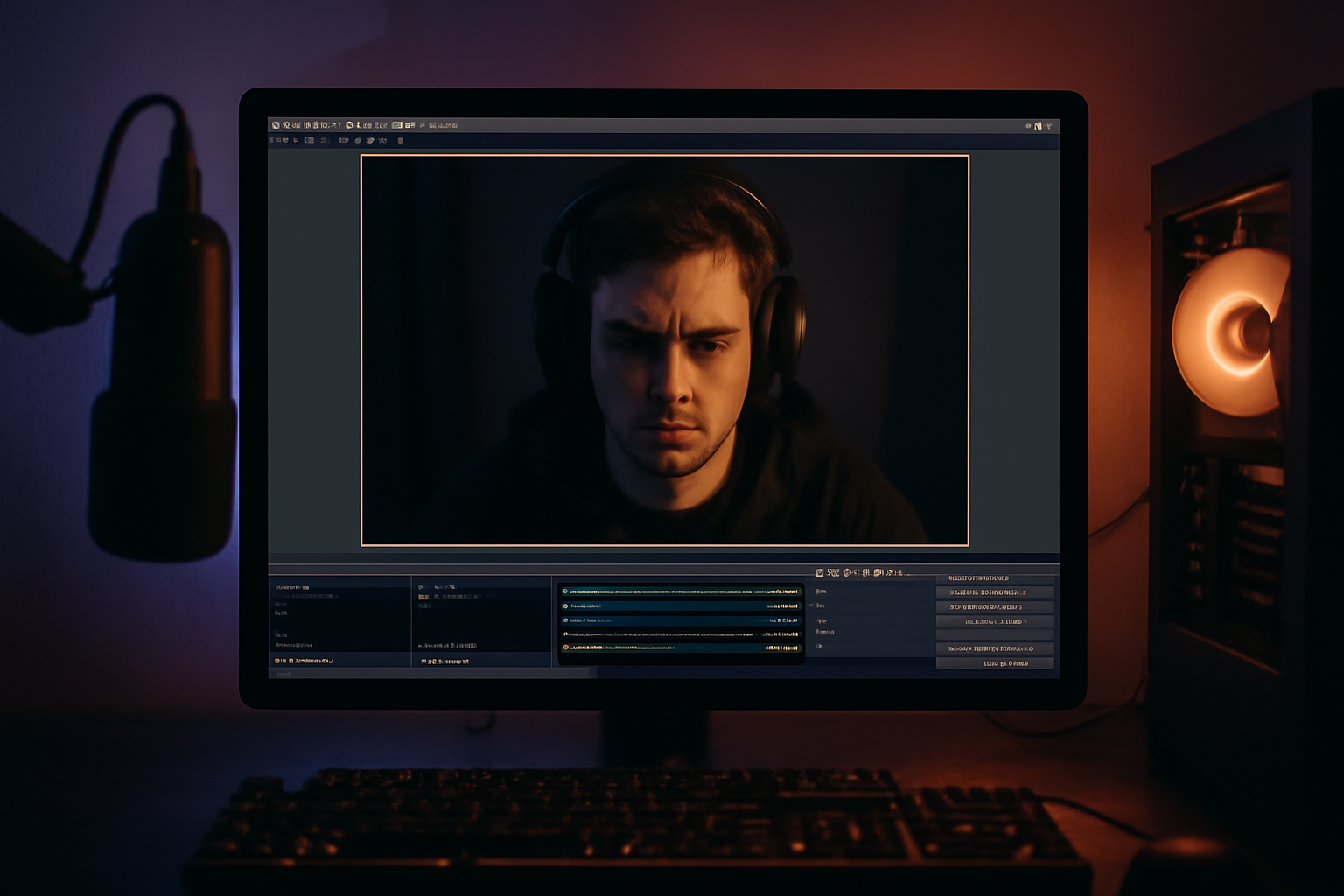
Picture a developer streaming their work on Twitch. The whole screen is VS Code. Maybe a terminal panel at the bottom, a file explorer on the left, the main editor taking up everything else. Every pixel of that screen matters to viewers trying to follow along.
Now put a webcam overlay in the corner. Any corner. It's covering something.
The Developer Streaming Layout Problem
Code editors don't have dead zones. A game streamer can sometimes tuck their webcam into a corner of the HUD with nothing behind it. A developer streaming VS Code doesn't get that. There's always a tab, a variable name, a line number, a bracket hiding under that webcam.
Most developer streamers deal with this one of three ways. They shrink the webcam down to tiny so it covers less. They pick a corner and accept that some content is hidden. Or they go no-cam, which solves the coverage problem but makes the stream feel less personal.
None of those options are actually good.
What Happens During a Live Coding Session
Here's a specific scenario. You're building something, explaining your approach, and you move your cursor up to the top of the file to reference something you wrote earlier. Your webcam is in the top right. Your cursor and the code you're pointing at are now both under your face.
You have two choices. Stop and drag the webcam, breaking your explanation. Or keep going and hope viewers can see enough. Usually you keep going. Viewers miss stuff.
This happens dozens of times in a single stream. Multiply that across every session and it's a real amount of friction affecting the quality of your content.
How Automatic Dodging Changes This
Cat and Mouse (catnmouse.app) watches your cursor and moves the webcam out of the way before it becomes a problem. You don't stop. You don't drag anything. You navigate your editor the way you always do, and your webcam repositions itself around your cursor automatically.
For developer streamers this is particularly useful because cursor movement in a code editor is constant and purposeful. Every move of your cursor means you're about to do or show something specific. Those are exactly the moments when you need visibility.
The Setup for a Coding Stream
Cat and Mouse connects to OBS via WebSocket. It detects your webcam source and starts watching your cursor position. There's nothing special to configure for a coding setup. It works the same whether you're in VS Code, Vim, JetBrains, or any other editor.
At three dollars a month the cost is trivial compared to the value of having cleaner streams. The early adopter price locks in when you subscribe, so what you pay now is what you pay going forward.
A Note on Viewer Experience
Developer streams are already harder to follow than game streams. Viewers are reading code in real time, tracking what you're building, and trying to understand your reasoning. Any extra friction, like not being able to see a line you're explaining because your face is on top of it, makes the learning experience worse.
The streams that build loyal audiences in the coding category are the ones that are easy to follow. Clean visibility, good explanations, no unnecessary interruptions. Solving the webcam coverage problem is a small thing that adds up across an entire stream.
If you're building something on stream and you want your viewers to actually see what you're doing, automatic webcam dodging is worth trying.
Stop typing. Start talking.
VoiceInk turns your voice into text in any app. Local, fast, private. Free to start.
Download VoiceInk Free